Connecting an MCP Connector in Claude
This guide shows how to connect your Atollon instance to Claude as a custom MCP connector.
Throughout the guide we use the example URL https://acme.atollon.com/mcp. Replace acme with your own instance name.
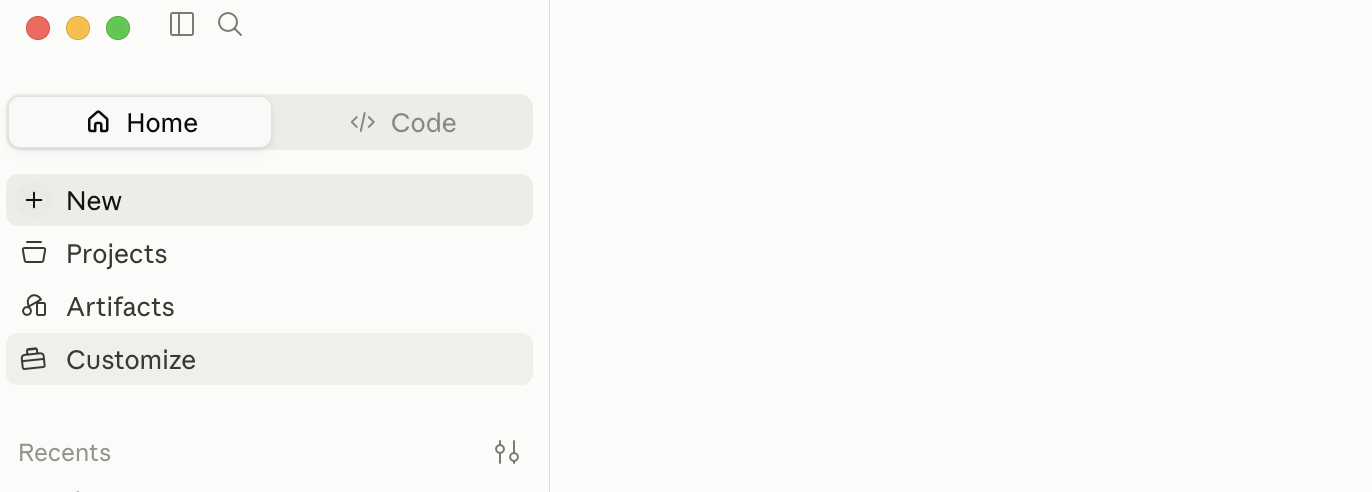
1. Open Customize
In the Claude desktop app, click Customize in the left sidebar.
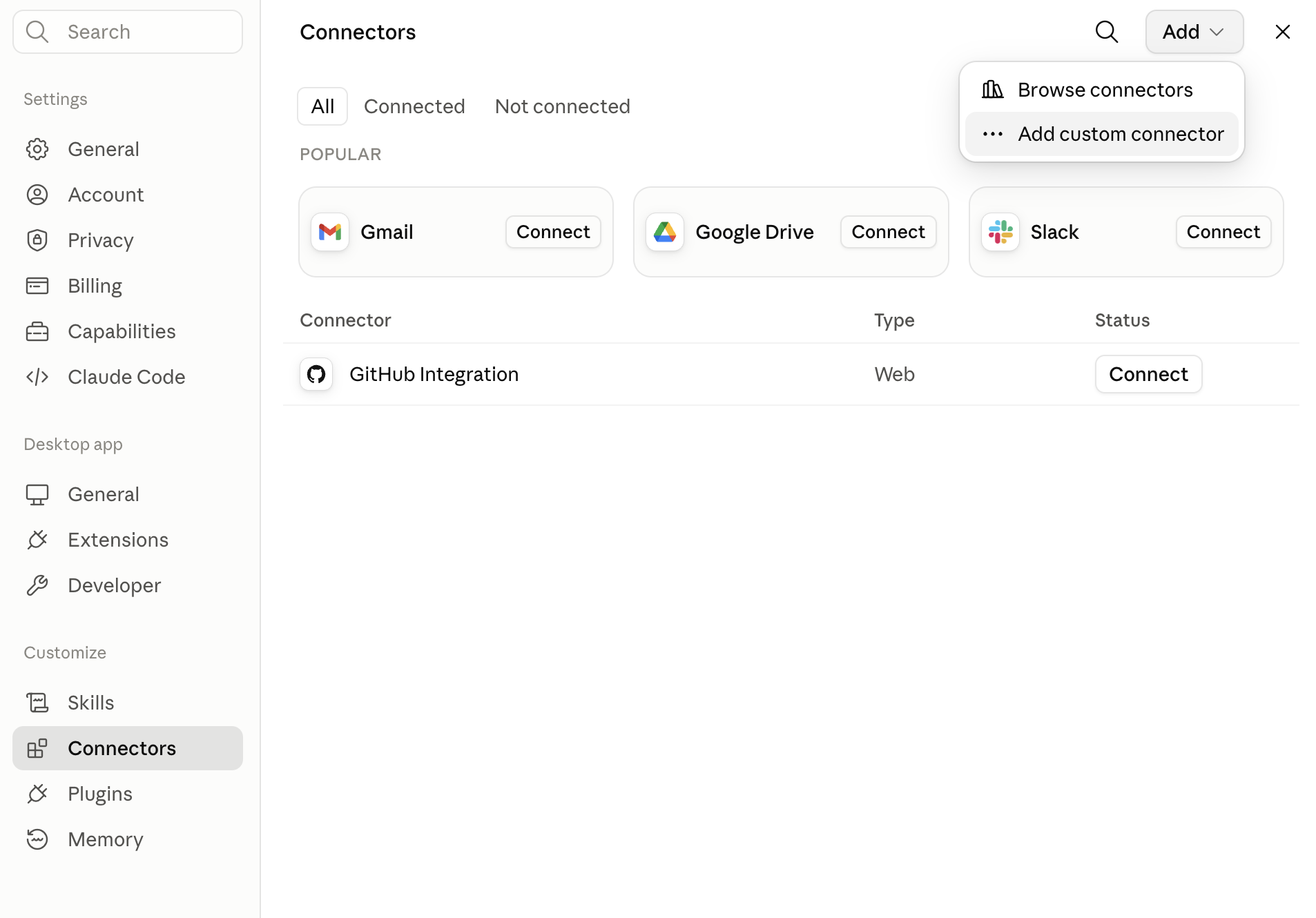
2. Go to Connectors and add a custom connector
Select Connectors in the left menu, then click Add in the top-right corner and choose Add custom connector.
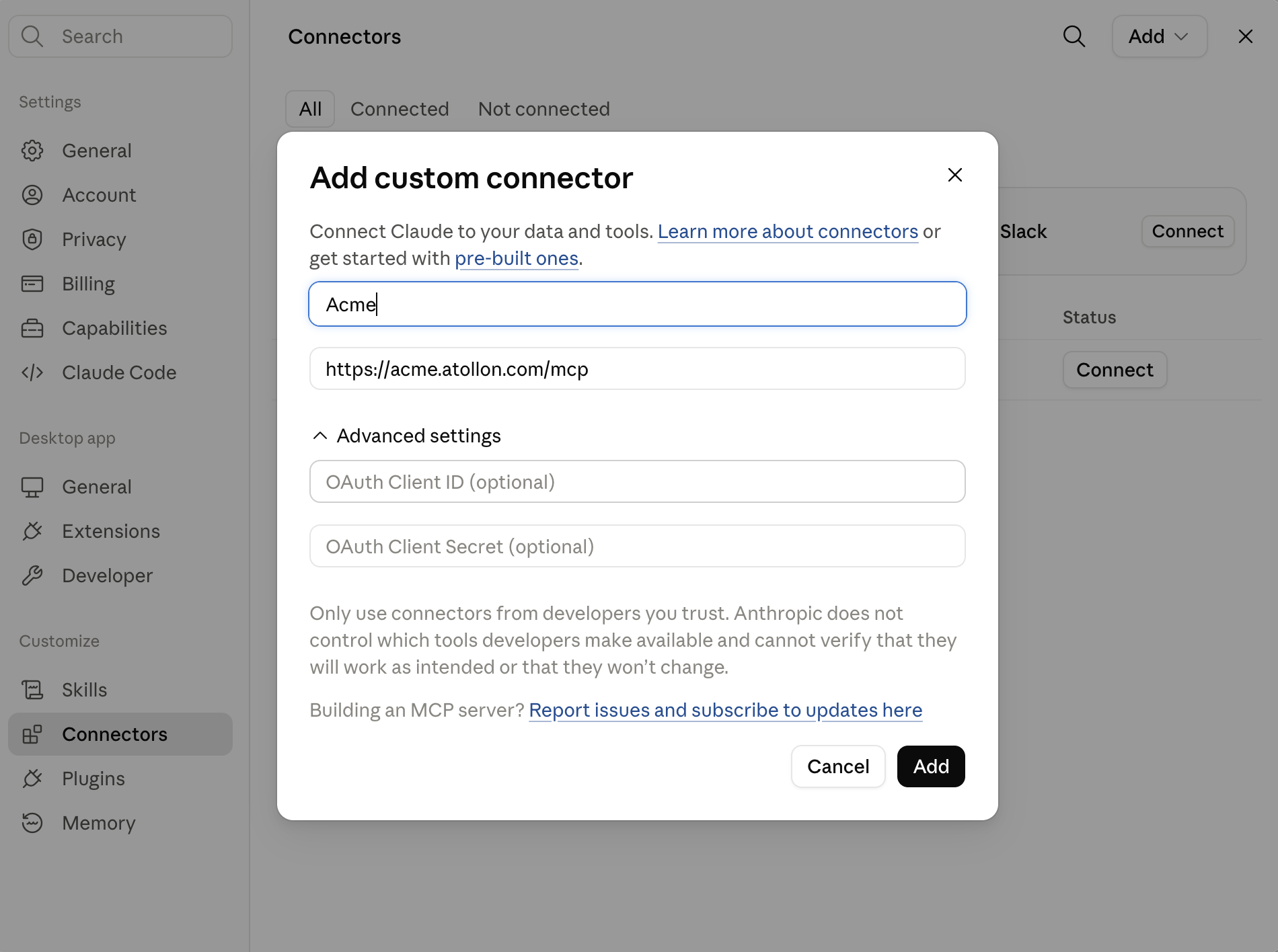
3. Enter the connector details
Fill in the dialog:
- Name — a label of your choice, e.g.
Acme - URL —
https://acme.atollon.com/mcp(replace acme with your instance name)
Leave the OAuth Client ID and OAuth Client Secret fields under Advanced settings empty — they are not required.
Click Add.
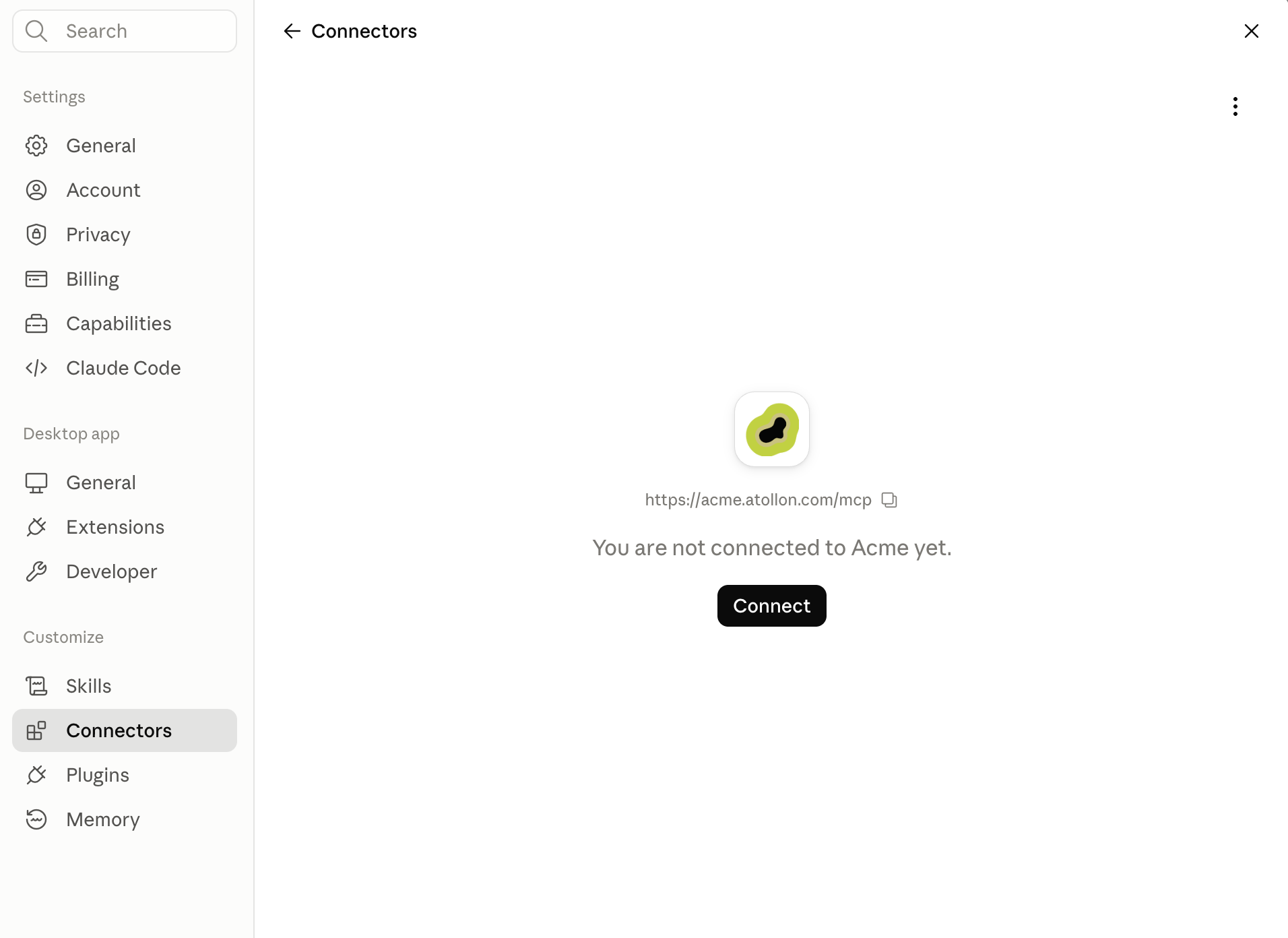
4. Connect
The connector is now listed but not yet active. Click Connect.
5. Sign in to Atollon
A sign-in window opens. Enter your Atollon username (or email) and password, then click Sign in.
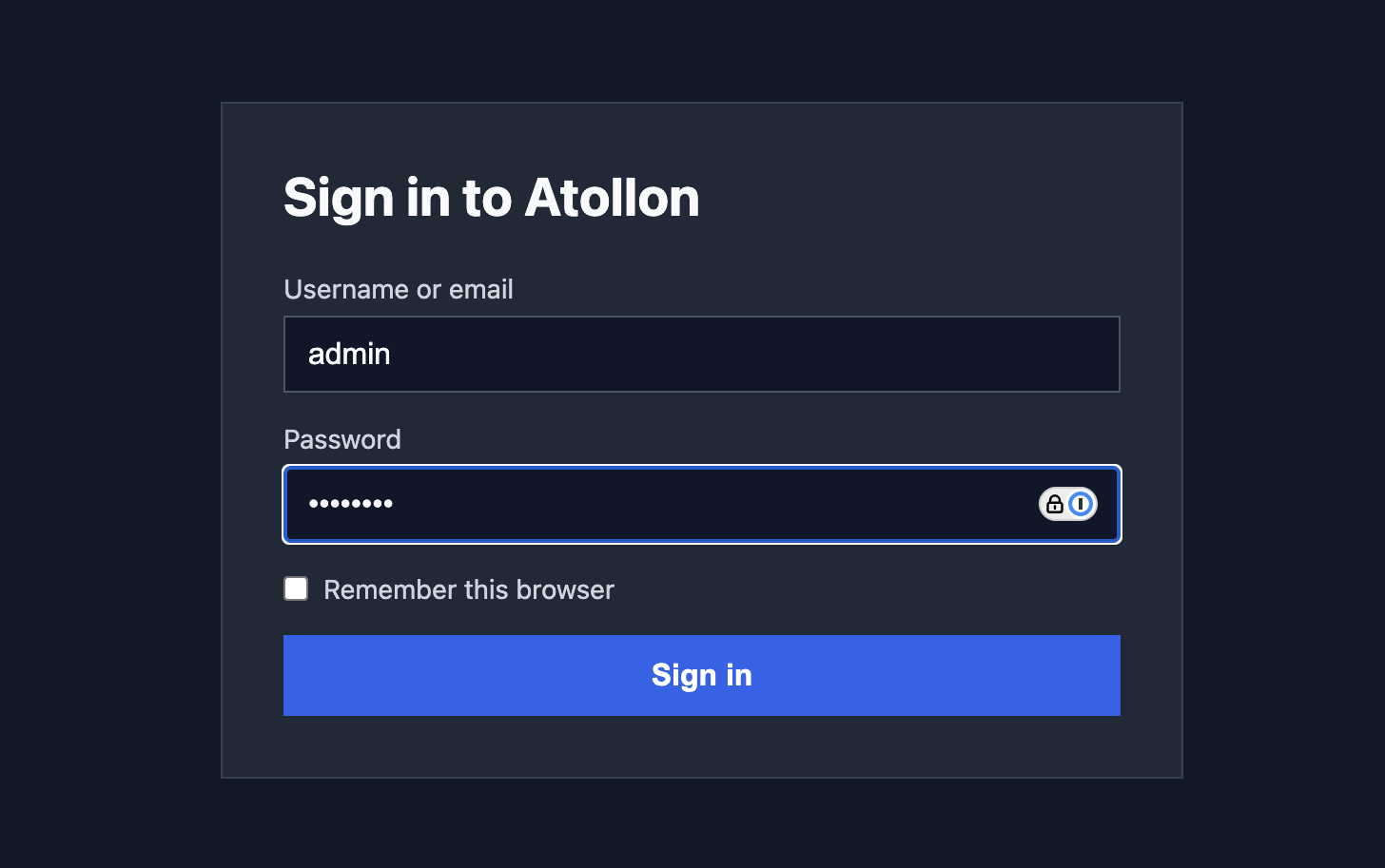
Once authorization completes, the connector shows as Connected and Claude can work with your Atollon data.
Troubleshooting
- Connector won't connect — check the URL is exactly
https://<instance>.atollon.com/mcp, with no trailing slash. - Sign-in fails — verify your credentials by logging into Atollon in a browser first.
- Connector disappears or goes inactive — reopen Connectors and click Connect again to refresh the authorization.
More information
See Anthropic's official documentation: Use connectors to extend Claude's capabilities