Generic Report Scenarios
March 21, 2020
Below mentioned examples / scenarios present only the most common reporting usage.
Show Clients Overview
In new report, select at least reporting criteria Account and field Name. Press (x) in Show in results column at this criteria.
Because system may contain several Folder Types (including Client, Partner, Simple Folders, etc.), you should filter for criteria Account > Type. Double click into "Filter value" column in the same row and select the "Clients" Folder Type (or any appropriate).
Additional to these two required fields, you may add another criteria, for instance:
Field Name
Description
Created from/to
Date the Client was created
Custom ID
Client reference number
Type
Folder Type
Status
Fixed status values (Initial, Active, Closed)
Custom Status
Any user-based status (Potential, Hot, VIP, Current, Lost, ...)
Path
Once the report is used for reporting folders, you can display the whole path to the folder. It may also be used once the client is created in multi-level organization structure, including branches of larger organizations.
Parent folder
Once the folder is stored within another folder in tree structure, it may contain the Parent folder
First contact date
The date of first communication with Client
Last contact date
The date of last communication with Client
Contact > Person > *
Is the Client person? If yes, you may use this category.
Contact > Company > *
Is the Client company? If yes, you may use this category.
Contact > Primary contacts > *
In any case you can use this category and show primary contact data, incl. primary e-mail, phone, mobile, address, etc.
Contact > Contact address > *
Show any address associated with the Client. In case there are more addresses, the report will generate more rows in report results.
Contact > Contact information > *
Show any Client's contact information (e-mail, phone, etc.). If there are more contacts found (several mail addresses), the report results will display new row for each of the contacts.
Contact > Bank > *
Show Client's bank account.
Contact > Valid from, Valid to, Keyword, Comment, Distribution group, Source database, Reference
Show additional Client contact details.
Subject Global Form > *
Once you assign the Form based on Folder Type = Client here, you will be able to include the Client's form values in the report results.
Form > *
Once you assign the Form based on Folder Template = Client here, you will be able to include the Client's form values in the report results.
Responsible team / user > *
Include these fields if you want to show Key Account for the Client. In case there are more responsible users for the same Client, the report results will show new row for each User and Client. In order to avoid this, you may filter only for Primary User.
Account state history > *
This is special reporting option allowing you to display history of Client status changes & user responsibility assignments.
By including any of the above fields, you may generate simple Clients overview reports.
Projects Reporting
We discussed basic project reporting in one of the last chapters of Core Set-up. One of the core reports is Project Status Overview report, which will indicate number of projects in particular Custom Status as well as primary responsible person for the project.
Tasks Status Reporting
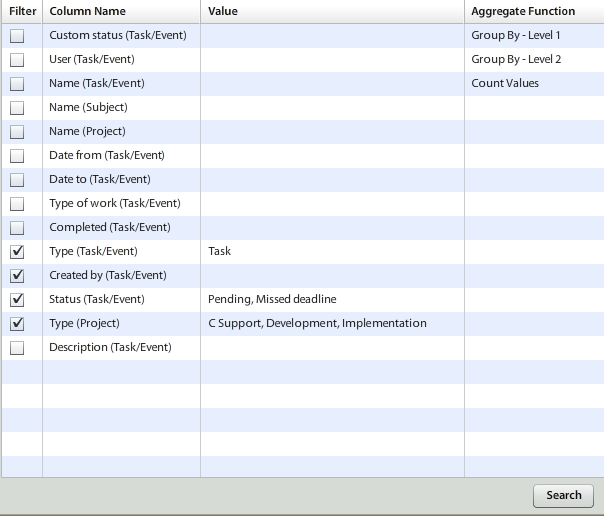
You can create reports that will indicate number of pending tasks or tasks waiting for your client's input easily. Please configure the following report, if it's not yet available in your Atollon:
Field NameFilteringGrouping CriteriaDescription
Task/Event.Custom Status
Group by
Group By criteria
Task/Event.User
Group by
Task Solver
Task/Event.Name
Count
Task Title (add Count criteria)
Folder.Name
Indicates a Folder Name (for example Client Name).
Project.Name
Indicates the Project Name, on which the Task is assigned.
Project.Type
Select types of projects that you want to watch. These should preferable include your Job, Case or Project and not your Sales Opportunity, which belongs to sales performance overview.
Your Project Type, belonging to production process.
Task/Event.Type
You can switch whether you want to report from Events or Tasks (in this case we need Tasks).
Task/Event.Date from
Date Task starts
Task/Event.Date to
Task Deadline
Task/Event.Type of work
(optionally Group by)
Type of work
Task/Event.Completed
Date Task was completed
Task/Event.Description
Task Description
Task/Event.Created by
Task Created Date
Task/Event.Status
Pending, Missed Deadline
The resulting report set-up should look like:
Activity Reporting using Messages
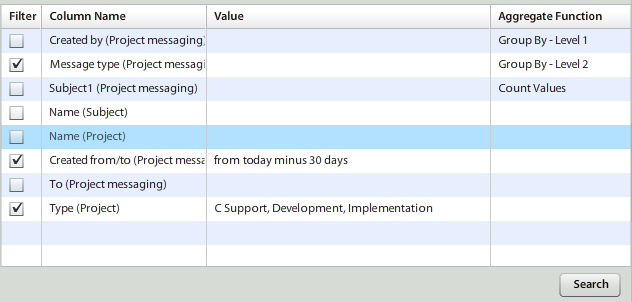
You can set-up report, which will show you communication frequency of your team workers. Again, you can focus only on communication connected with execution projects. Always when interpreting your report results, you should consider factors that influence the results. Of course, it would be strange if your main executive force is the most communicating and on the other side your projects coordinator has only few notes.
Field NameFilteringGroupingDescription
Project Messaging.Created by
Group by
Who created the message
Project Messaging.Message Type
Group by
What type of message was created
Project Messaging.Subject
Count
What was written
Folder.Name
Name of the Client / Folder
Project.Name
Name of the Project
Project Messaging.Created from/to
Last 30 days
Project Messaging.To
Whom the message was sent (in XML format)
Project.Type
Any execution type projects
You want to get only your production type of communication.
This project will give you nice overview of how you care about your existing projects / clients. Once you communicate frequently, it may increase the security of your client and improve your relations with them.
The resulting report set-up will look like:
Please feel free to design your own reports that will help you measure your production effectiveness. Using strong base that you get in Atollon, when properly used, you can manage your company based on numbers, as an supportive tool for your management decisions.