Monitoring preventive maintenance
July 18, 2026
How to read preventive maintenance signals in Atollon app: the PM status badges (Overdue, Due soon, OK, Not setup), due dates on the device list and serial detail, and how to filter the installed base to find devices needing service.
Once your administrator has set up preventive maintenance (PM) rules, Atollon tracks when each device is due for service and shows it to you at a glance. This guide explains how to read those signals in the web client — on the device list and on individual device detail — and how to find the devices that need attention. Setting up the rules themselves is covered in Configuring preventive maintenance intervals.
The four PM statuses
Atollon summarises every device's maintenance state as one of four statuses, each shown as a coloured badge:
- Overdue (red) — the due date has passed; service is late.
- Due soon (amber) — the due date is within the alert lead time window.
- OK (green) — maintenance is scheduled and not yet due.
- Not setup (grey) — no maintenance rule applies to the device.
Alongside the status, Atollon shows how many days remain — for example "in 13 days" — or how many days a service is overdue. The due date itself is derived automatically from the last recorded maintenance plus the interval, or from the install date when there is no maintenance history.
PM status on the device list
The device list can show preventive-maintenance columns so you can scan your whole installed base at once. In the example below, the PM Status view adds pmDue (the earliest upcoming due date) and pmNext (the following service after that) to the Installed Technology list.
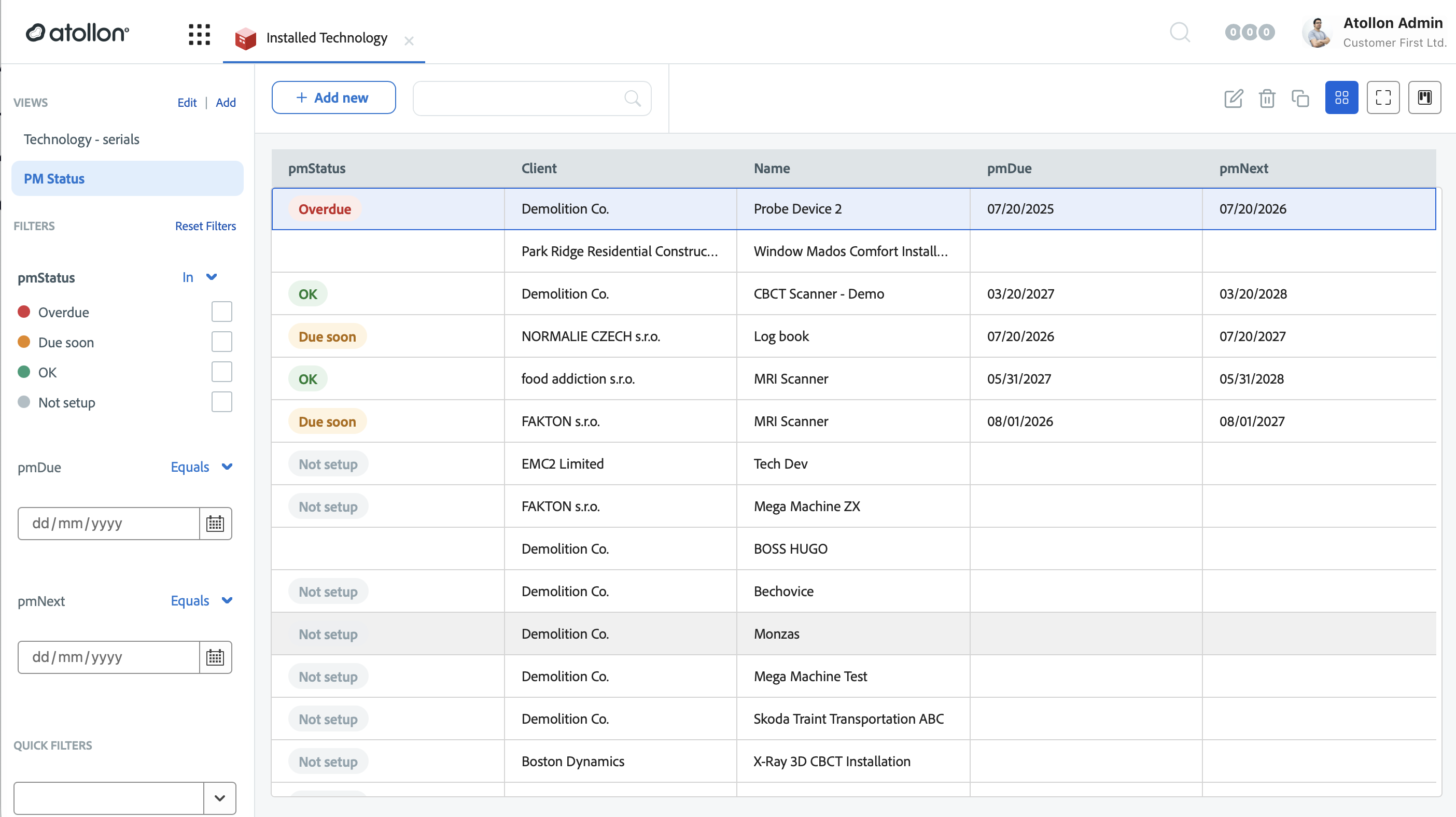
For a project or client with several devices, the row shows the worst status among its devices (so one overdue device surfaces the whole row as Overdue), the earliest upcoming due date, and the next service after that.
These PM columns are opt-in: they appear only when your view includes them, so users who do not need PM see no change. Use the Views menu to switch to a PM-oriented view, or ask your administrator to add the PM columns to a view.
PM status on a device
Open any device to see its maintenance status in context. The Preventive maintenance card at the top of the serial detail shows the status badge, the due date and days remaining, the interval, and which rule level applies.
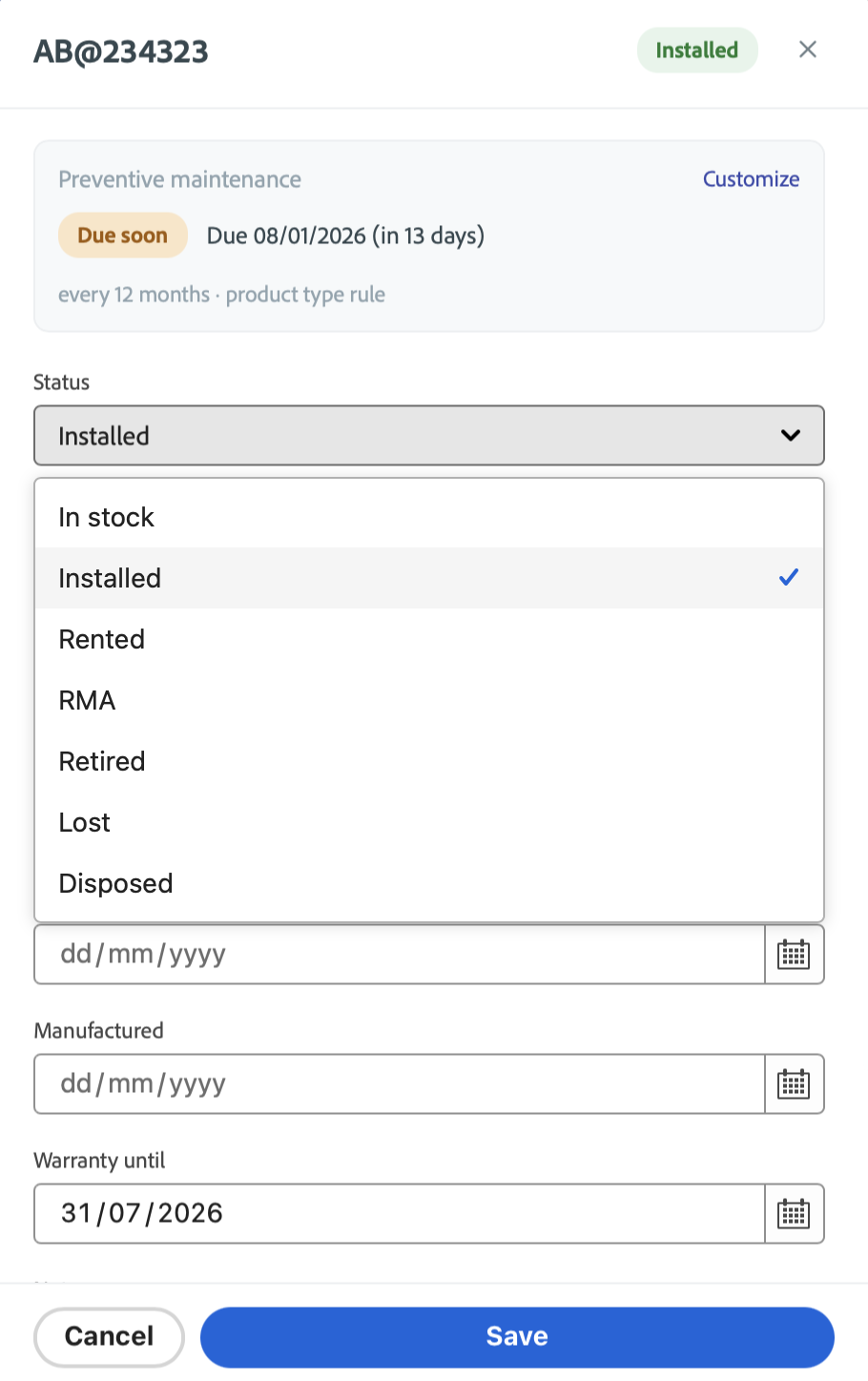
In this example the card reads Due soon — Due 08/01/2026 (in 13 days) with "every 12 months · product type rule" underneath. The rule source tells you whether the effective rule comes from the serial, the product, or the product type — a reminder that a more specific rule can override the type default. Use Customize on the card to add or change a serial-level rule for this device.
How PM Due and PM Next are calculated
Atollon computes the preventive-maintenance dates automatically from each device's rule and its maintenance history — you never set PM Due or PM Next by hand.
- PM Due (pmDue) is the next date the device is due for service. For a single serial it is the last preventive-maintenance date plus the maintenance interval. If the device has never been serviced in Atollon, the date is counted from its install date plus the interval; if neither date is known, the device is treated as due immediately.
- PM Next (pmNext) is the service after PM Due — PM Due plus one more interval — so you can see both the upcoming service and the one that follows it.
- For a project or client with several devices, PM Due is the earliest upcoming due date among its serials, and PM Next is taken from that same serial, so the two dates always belong to one device and one interval.
- A device turns Due soon once today reaches PM Due minus the rule's alert lead time.
Recording maintenance to move the due date
To move PM Due forward, record a preventive-maintenance service activity against the device's serial. The activity carries a Period from / Period to and lists the serviced device under Project products with its Serial Number, which links the maintenance to that specific serial.
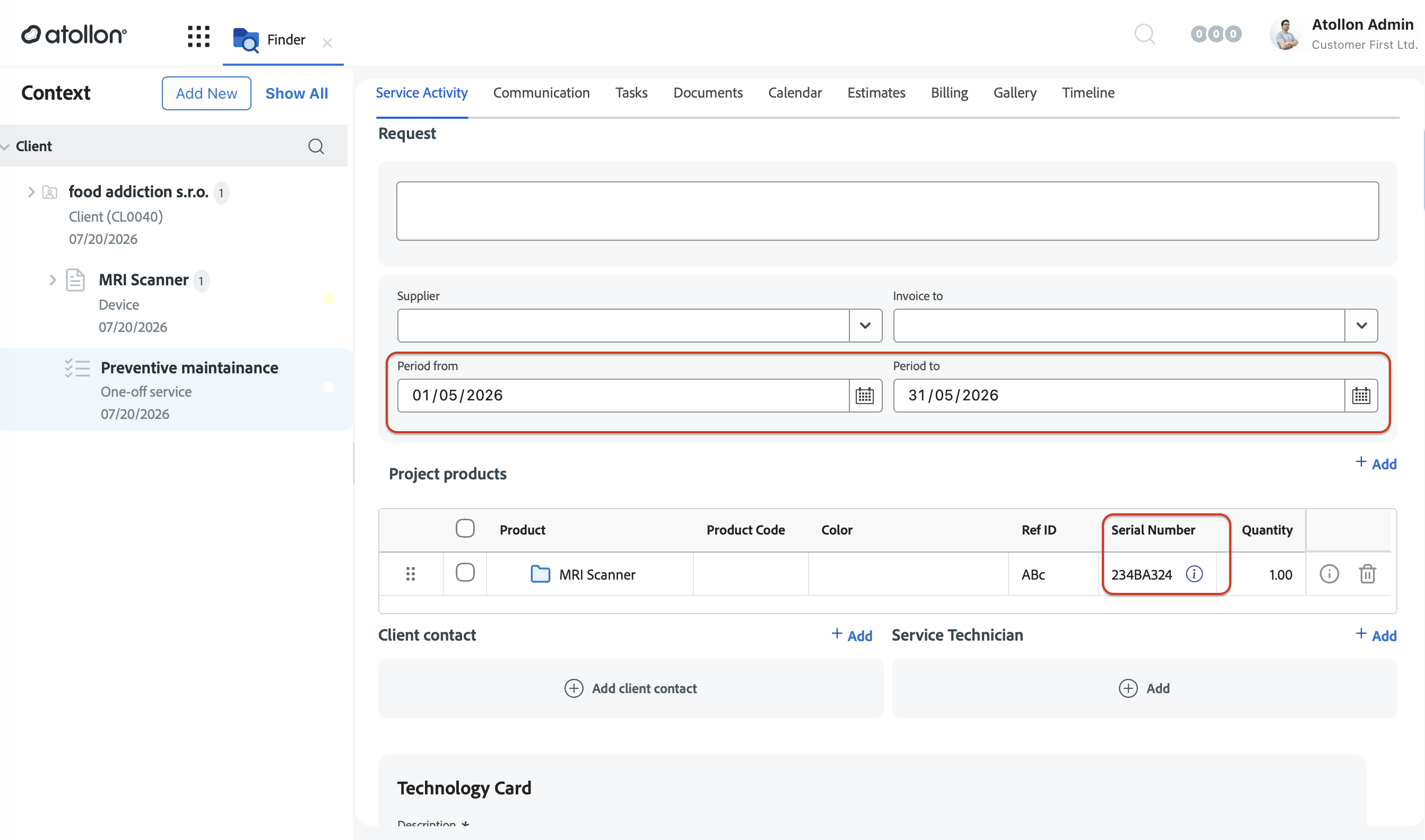
Once the activity is saved, its period becomes the serial's last-maintained date, and Atollon rolls PM Due forward to the next period — last maintained plus the interval — and recomputes the status. This is how a device that was Overdue or Due soon returns to OK after it has been serviced.
Finding devices that need service
To plan field service, filter the list by maintenance state. The filters map directly to the PM data, so results are always the accurate server-side subset.
Useful filters and presets include:
- Status = Overdue — everything that is already late.
- Status = Due soon — devices entering their alert window.
- Due in 30 days — set the due-date filter to today plus 30 days.
- Combine with customer, project, or item to focus on one account.
When you sort by status, Atollon orders devices Overdue first, then Due soon, then OK, then Not setup, with the nearest due date first within each group — so the most urgent work is always at the top.
Drilling down
From a project row that shows a PM status, you can open the preventive maintenance view filtered to just that project's devices. From a device row you can open the device detail to see its full maintenance card and history. This lets you go from a high-level "this account has an overdue device" signal to the exact unit in a couple of clicks.
Related guides
- Configuring preventive maintenance intervals — for administrators defining the rules behind these signals.
- Tracking your installed devices — browse, filter, and update the devices themselves.