Working with views and filters in custom apps
Get the most out of custom applications as a user: switch views, combine filters, flip between table, card and kanban display, and save personal views for the lists you check every day — with recommended view recipes for Clients, Leads, Suppliers, Deals, Installed Technology, Service Activities and Protocols.
Custom applications put the records you work with — clients, deals, installed devices, service visits — one click away. What makes them fast day to day is the view system: instead of re-filtering a generic list every morning, you open a view that already knows what you want to see, tweak it with a quick filter, and save your own variant when a pattern becomes routine.
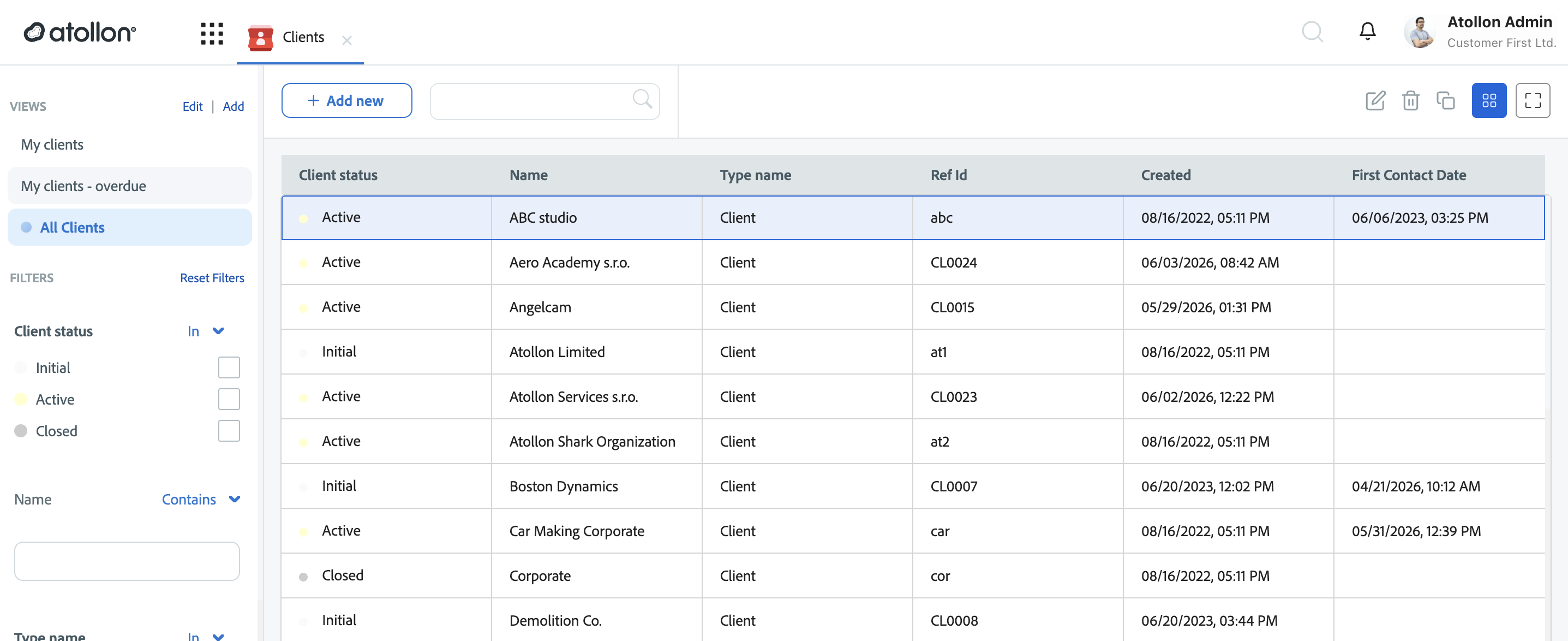
The left panel: views and filters
- VIEWS (top): the saved views available to you — shared ones prepared by your administrator ("All Clients") and your personal ones ("My clients — overdue"). Selecting a view loads its columns, filters and sort order; the first view opens by default.
- FILTERS (below): the active view's filter set, ready to adjust — check a status, type a name fragment, pick a date range. Reset Filters returns to the view's defaults.
- Quick filters: add any other available field as an extra filter for the current session. Quick filters are not saved — experiment freely, the view stays untouched.
If a filter combination earns its keep, save it as a personal view (Add next to VIEWS, level Personal): it appears only for you, right next to the shared views. That is the intended workflow — shared views for the team's common ground, personal views for your routine.
Table, cards or kanban
The toolbar switches how the current view renders:
- Table — the workhorse: dense rows, sortable columns. Best for working through many records and comparing fields.
- Cards — each record as a tile leading with its state, name and key context. Best for scanning a portfolio at a glance.
- Kanban — records as cards in status columns. Best for anything with a pipeline: the columns are the record's states, so the board position is the status report.
Recommended view recipes
Your app names and fields may differ — these combinations have proven useful. Anything listed as a column can usually also be filtered, and custom form fields (like First Contact Date or Technology Description) appear when your administrator has added them to the schema.
Folder apps — Clients, Leads, Suppliers
- Clients — Table, columns Client status, Name, Type, Ref Id, First Contact Date; personal view filtered to your clients with status Active. The status column plus a date custom field turns the client list into a follow-up radar — sort by First Contact Date to spot relationships going quiet.
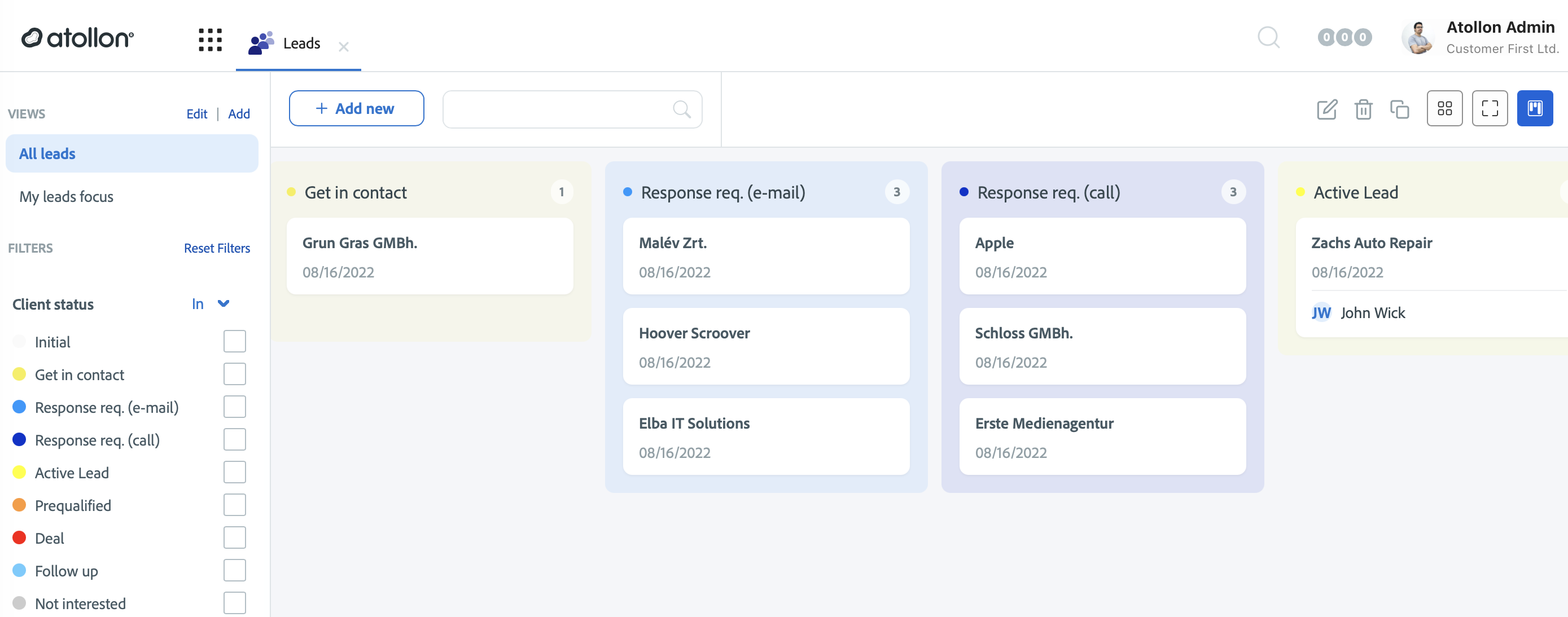
- Leads — Kanban by lead status — Get in contact → Response required → Active Lead → Prequalified; a personal "My leads focus" view on top. Every column is a to-do list: the "Response required" columns show exactly who is waiting for your e-mail or call, and moving a card forward is the status update.
- Suppliers — Table filtered by supplier Type; card view when reviewing the portfolio. Type-based filtering answers "who do we have for X?" without a spreadsheet.
Project apps — Deals, Installed Technology, Generic Projects
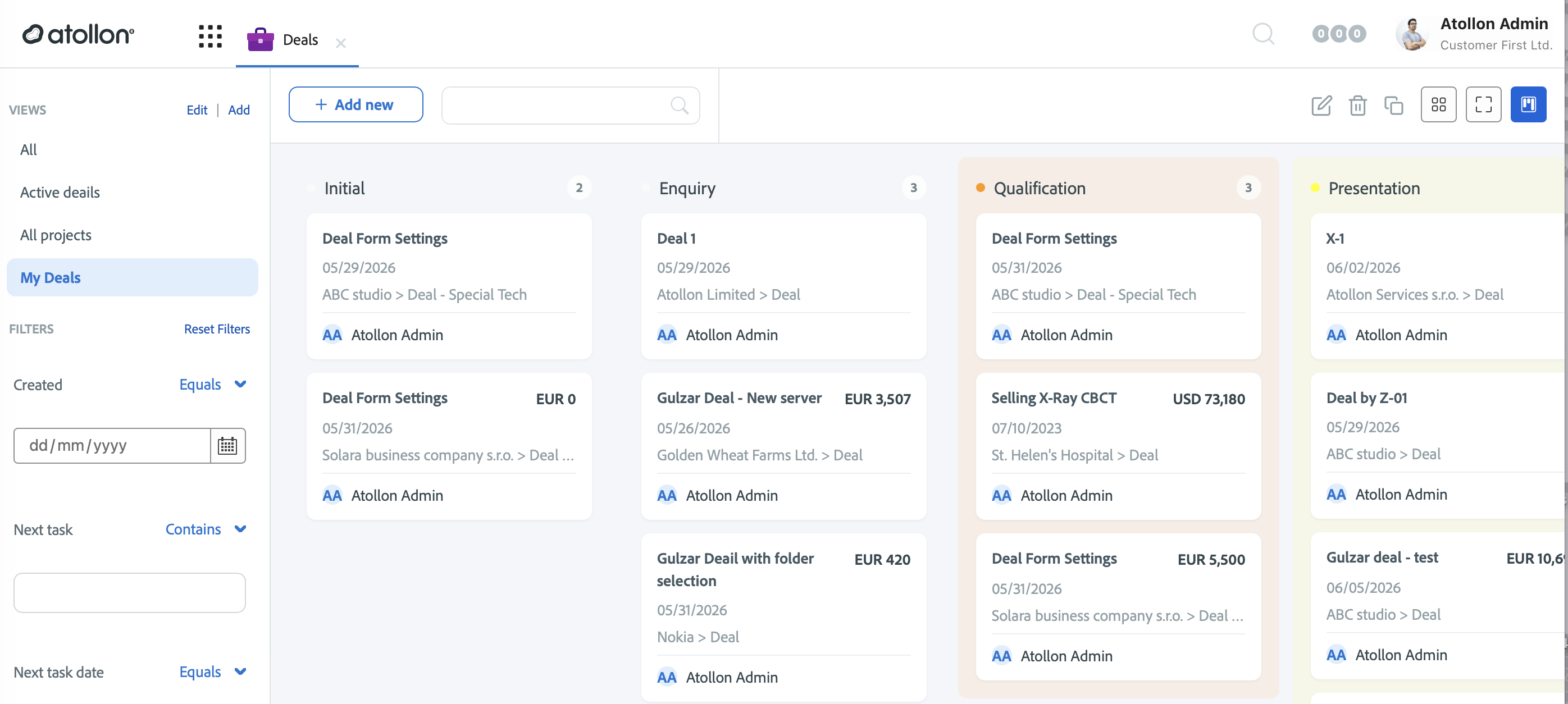
- Deals — Kanban by deal stage — Initial → Enquiry → Qualification → Presentation → … — with a personal "My Deals" view; filter by Next task date to plan the week. The classic pipeline board: each card carries the deal value, client and owner, so a column's cards sum to the stage forecast at a glance — and a deal without a next task is a deal going stale.
- Installed Technology — Table, columns Name, Client (parent folder), Technology Description, Guarantee; filter by client. A live installed-base register: one filter shows everything running at a customer site — guarantee fields included when your admin adds them from the technology card form.
- Generic Projects — Table by State and Client; card view for portfolio reviews. State plus parent folder answers the two questions every project list gets: what's running, and for whom.
Activity apps — Service Activities, Protocols
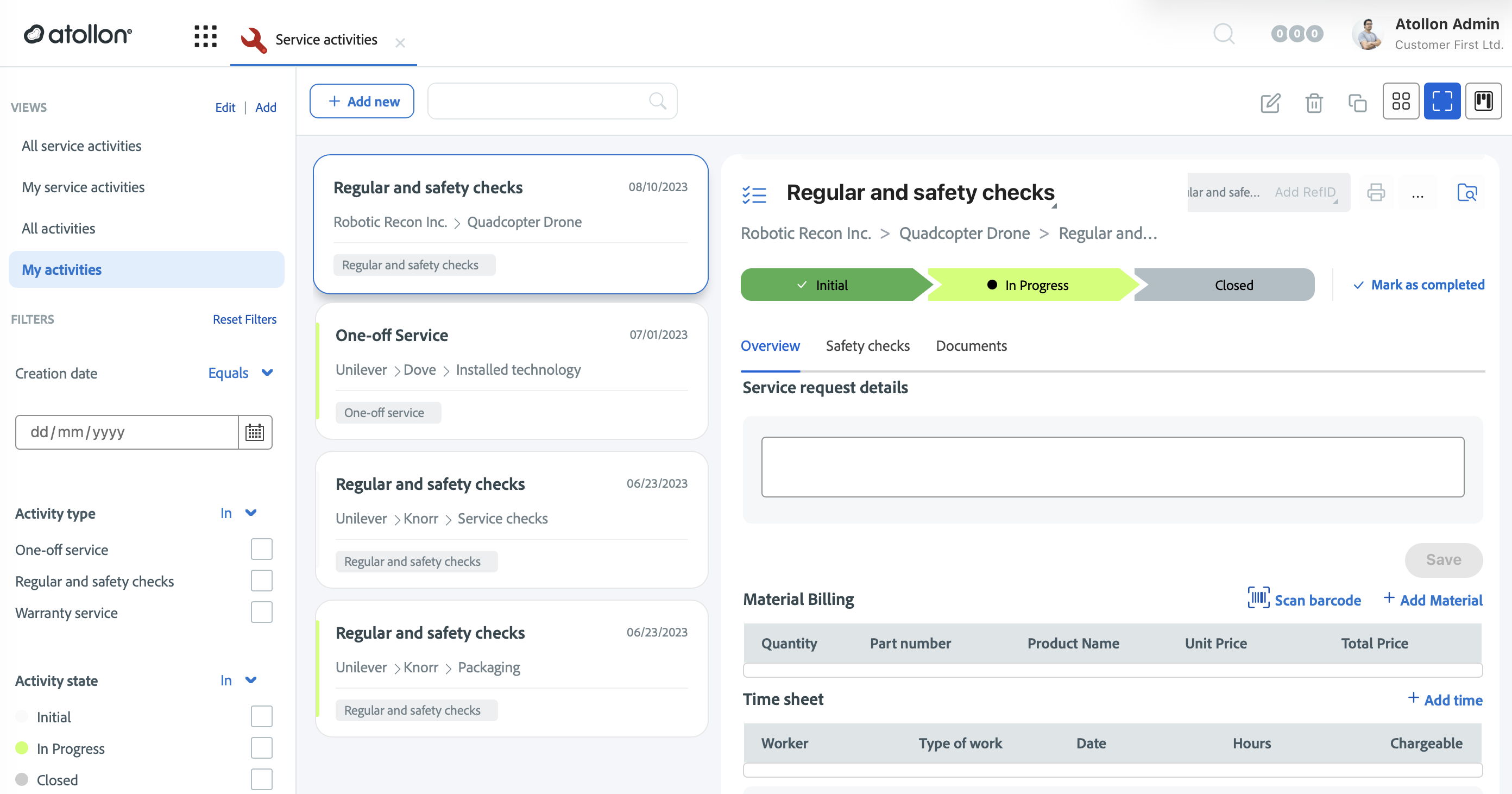
- Service Activities — Cards with the detail pane — "My activities" view filtered by Activity type (one-off service, regular and safety checks, warranty) and Activity state (Initial / In Progress / Closed). Each card is a work order at a glance — client › branch › installation, date and type — and selecting it opens the full activity beside the list: state stepper, material billing, time sheet, all without leaving the app.
- Protocols — Table with start and final dates, filtered by installation or period. Certificates and handover protocols become an audit trail — the date columns answer "when was it last done and when is it due".
Prerequisites
Custom applications and their shared views are prepared by your administrator. If a field you need is missing as a column or filter, ask them to add it — see Managing form schemas and Configuring custom views.
Related
- Custom Applications — the overview
- Configuring custom views — for administrators