Setting up serialized device tracking
July 18, 2026
How an administrator turns on device (serial-number) tracking in Reef: create a serialized product type, expose the current-serial fields on the Installed Technology list, and understand the serial attributes Atollon tracks for each device.
Device tracking lets you follow individual physical units — a specific MRI scanner, probe, or machine — through their whole life at a customer site: who owns them now, when they were installed, their warranty window, and their supplier. In Atollon each tracked unit is a serial (a stock serial number) attached to a product. This guide is for administrators setting the feature up in the Reef web client. Once it is configured, end users work with devices as described in Tracking your installed devices.
What a serial records
A serial is one physical instance of a product. Every serial carries a set of current-owner attributes that Atollon keeps up to date as the device moves:
- Serial No — the manufacturer or asset serial number.
- Serial Status — where the unit is in its lifecycle: In stock, Installed, Rented, RMA, Retired, Lost, or Disposed.
- Asset tag — your internal inventory tag.
- Manufacturer — the make of the device.
- Supplier — the folder of the supplier the unit came from.
- Mfg Date — manufacture date.
- Warranty Start / Warranty End — the warranty window.
- Installed from / Installed to — the current installation period.
- Last movement — the date the unit last changed hands or location.
These attributes belong to the current owner of the serial, so the list always reflects where a device is today rather than its full movement history.
Step 1 — Create a serialized product type
Serialized tracking is switched on at the product type level. A product type whose base type is Serial (serial number required) forces every product of that type to carry serial numbers, which is what makes per-unit tracking possible.
1. Open Options & Tools > Product Types in Reef. 2. Select an existing type or click Add new. In the example below, Medical Devices is a product type for serialized medical equipment. 3. Set Base Type to Serial (serial number required). 4. Fill in the name, note, and any project types the products should link to, then click Save.
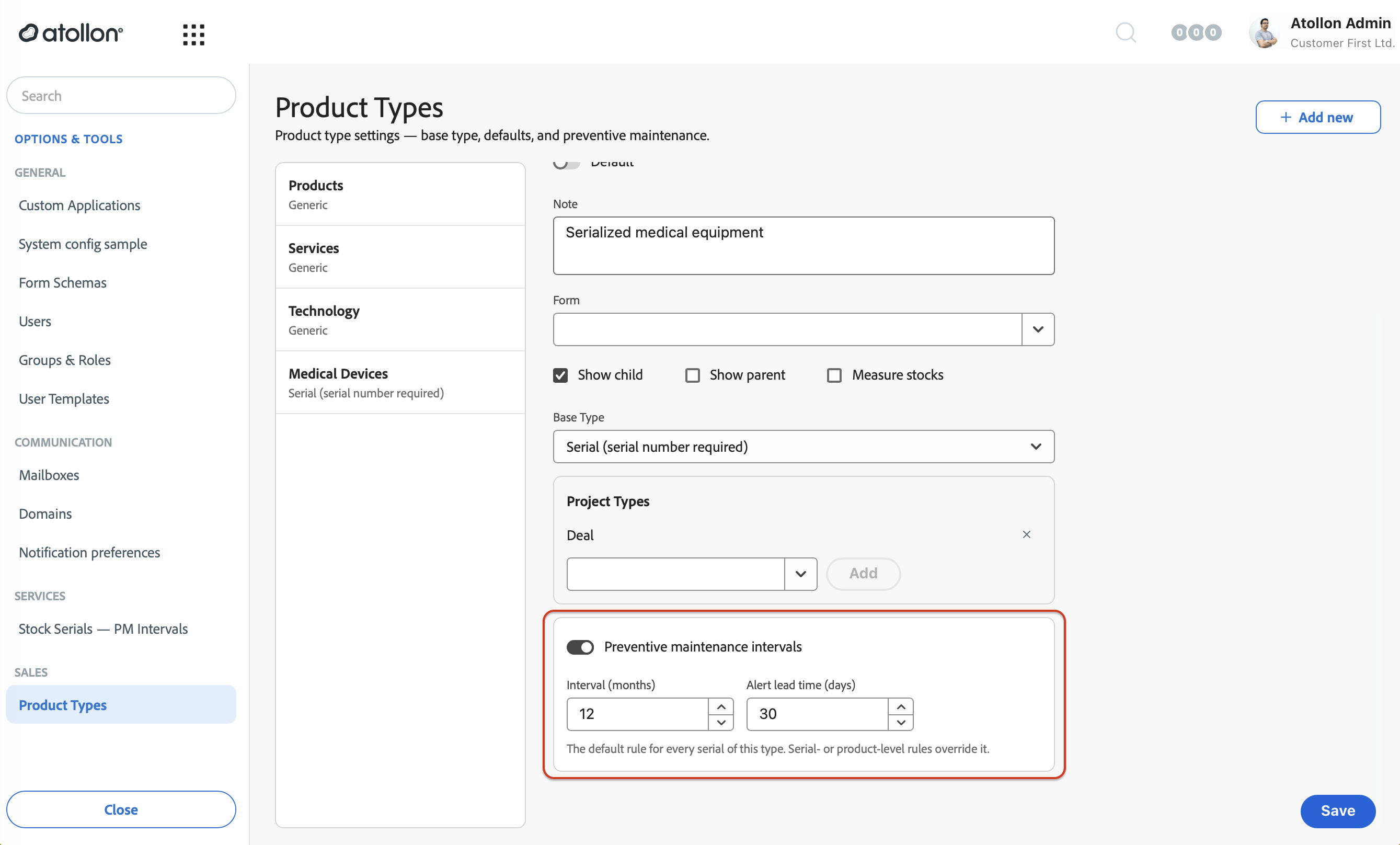
The same dialog carries an optional Preventive maintenance intervals section. You can leave it off for now — it is covered in Configuring preventive maintenance intervals.
Step 2 — Show serial fields on the device list
By default the project list does not display serial attributes. To make them available as columns and filters, add the `projectCurrentSerial.` fields to the list view's form schema*. This keeps the feature opt-in: views that do not include these fields are completely unchanged.
1. Open Options & Tools > Form Schemas. 2. Open the schema for the list you use for devices — in the example, the Installed Technology view (form type `ListProjectAdvanced`). 3. Search for serial to find the available current-serial fields, then tick the ones you want to expose and Save changes.
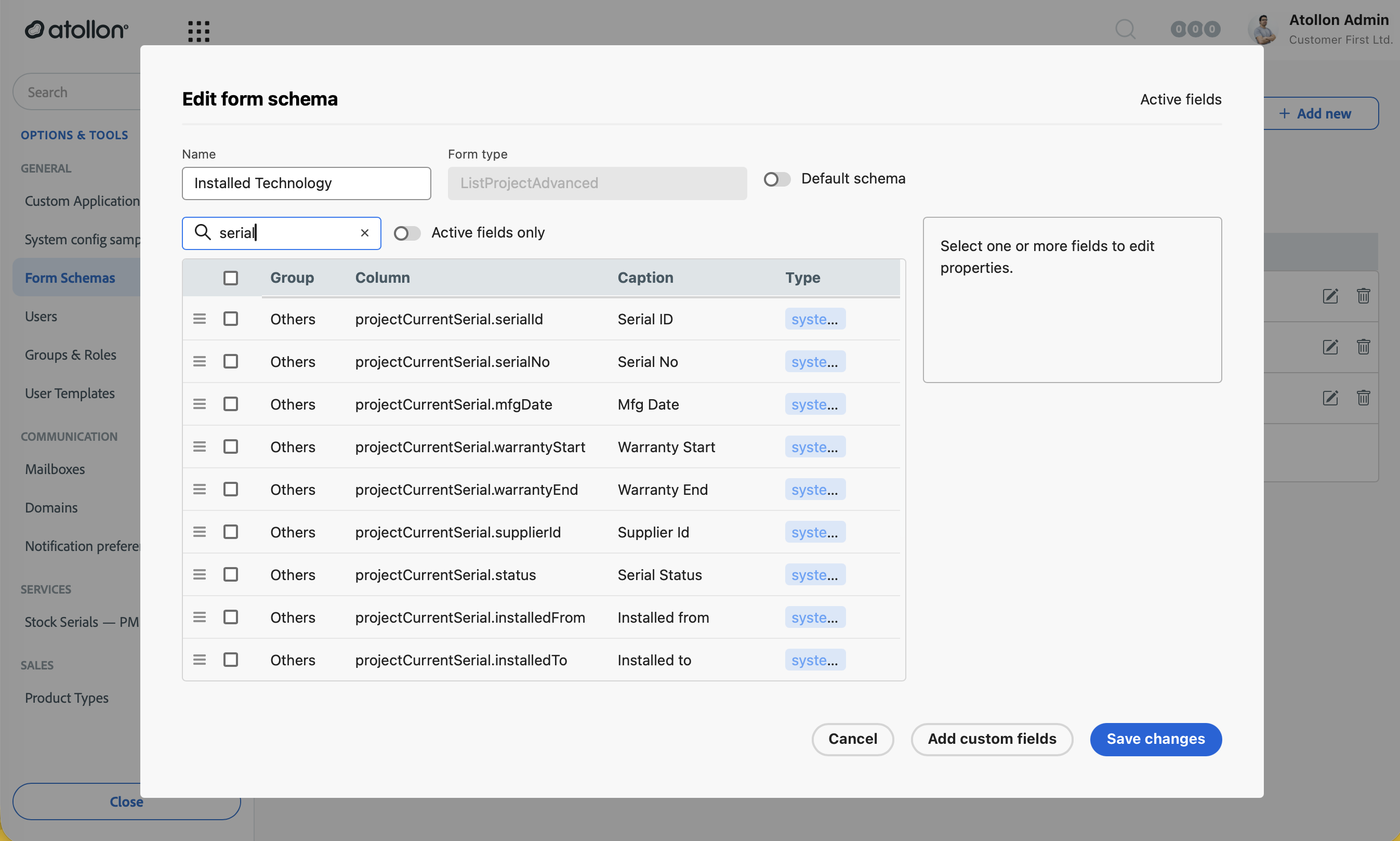
The current-serial fields you can add are: Serial ID, Serial No, Mfg Date, Warranty Start, Warranty End, Supplier Id, Serial Status, Installed from, Installed to, Last movement, Asset tag, and Item Manufacturer. Each one becomes available both as an optional column and as a filter control (a date picker for dates, a text box for text fields, and entity pickers for Supplier and Manufacturer).
Step 3 — Let users filter by serial attributes
Once the fields are in the schema, users can add them to their own views and filter the device list server-side — for example a Warranty review (warranty ending in the next 90 days) or a Supplier drill (all devices from one supplier). Administrators do not need to configure these presets; they are ordinary saved filter states built on the fields you exposed.
Because all filtering happens on the server, large device populations stay fast and users only ever load the rows that match their filter.
Field naming note for integrators
The current-owner attributes are delivered on the SOAP surface under the `projectCurrentSerial.` prefix (for example `projectCurrentSerial.warrantyEnd`). This is deliberately distinct from the lifecycle-based `projectItemProduct.` serial fields, which remain available for historic movement queries. The `projectCurrentSerial.` fields always resolve to the current owner of the serial. Client applications discover which fields are available from the view configuration rather than hardcoding the list, so exposing a field in the form schema is all that is needed to make it usable.
Date fields such as Installed from, Installed to, and Last movement are true calendar dates, so a filter like Installed from equals 1 June 2026 matches exactly.
Related guides
- Configuring preventive maintenance intervals — add automatic maintenance scheduling on top of your serialized product types.
- Tracking your installed devices — the end-user guide to the device list and serial detail.
- Monitoring preventive maintenance — the end-user guide to PM status and due-date signals.