Configuring preventive maintenance intervals
July 18, 2026
How an administrator defines preventive maintenance rules in Reef - maintenance interval and alert lead time - at the product type, product, or serial level, and how rule precedence decides which rule applies to each device.
Preventive maintenance (PM) automation lets Atollon tell you when a tracked device is due for service — before it becomes overdue. It works from PM rules you define: each rule sets a maintenance interval and an alert lead time. Atollon then computes a due date and a status for every device automatically. This guide is for administrators configuring PM rules in the Reef web client. End users read the resulting signals as described in Monitoring preventive maintenance.
Preventive maintenance is an option on top of any product type — there is no base-type restriction and it adds no fields or steps for products that do not use it.
What a PM rule contains
A PM rule has four settings:
- Interval (months) — how often the device needs maintenance (required, greater than 0). For example, 12 for an annual service.
- Alert lead time (days) — how many days before the due date the device starts showing as Due soon (default 30, cannot be negative).
- Active — whether the rule is in effect (on by default).
- Note — free text, e.g. "Manufacturer recommends annual service".
From these, Atollon derives each device's next due date and its PM status (Overdue, Due soon, OK, or Not setup).
Rule scope and precedence
A PM rule applies to exactly one scope:
- Product Type — the default rule for every device of that type.
- Product (Item) — a rule for one specific product.
- Serial — a rule for one individual device.
When more than one rule could apply to a device, the most specific rule wins: serial overrides product, and product overrides product type. So you can set an annual default on a product type and still give a single serial a six-month rule where the manufacturer requires it.
Only one active rule is allowed per scope. If you try to add or activate a second active rule for the same device, product, or product type, Atollon blocks it and offers to open the existing rule — deactivate that one first, or edit it instead.
Option A — A default rule on a product type
Setting the rule on the product type is the usual starting point, because every device of that type then inherits it automatically.
1. Open Options & Tools > Product Types and select the type. 2. Turn on Preventive maintenance intervals. 3. Set the Interval (months) and Alert lead time (days). 4. Click Save.
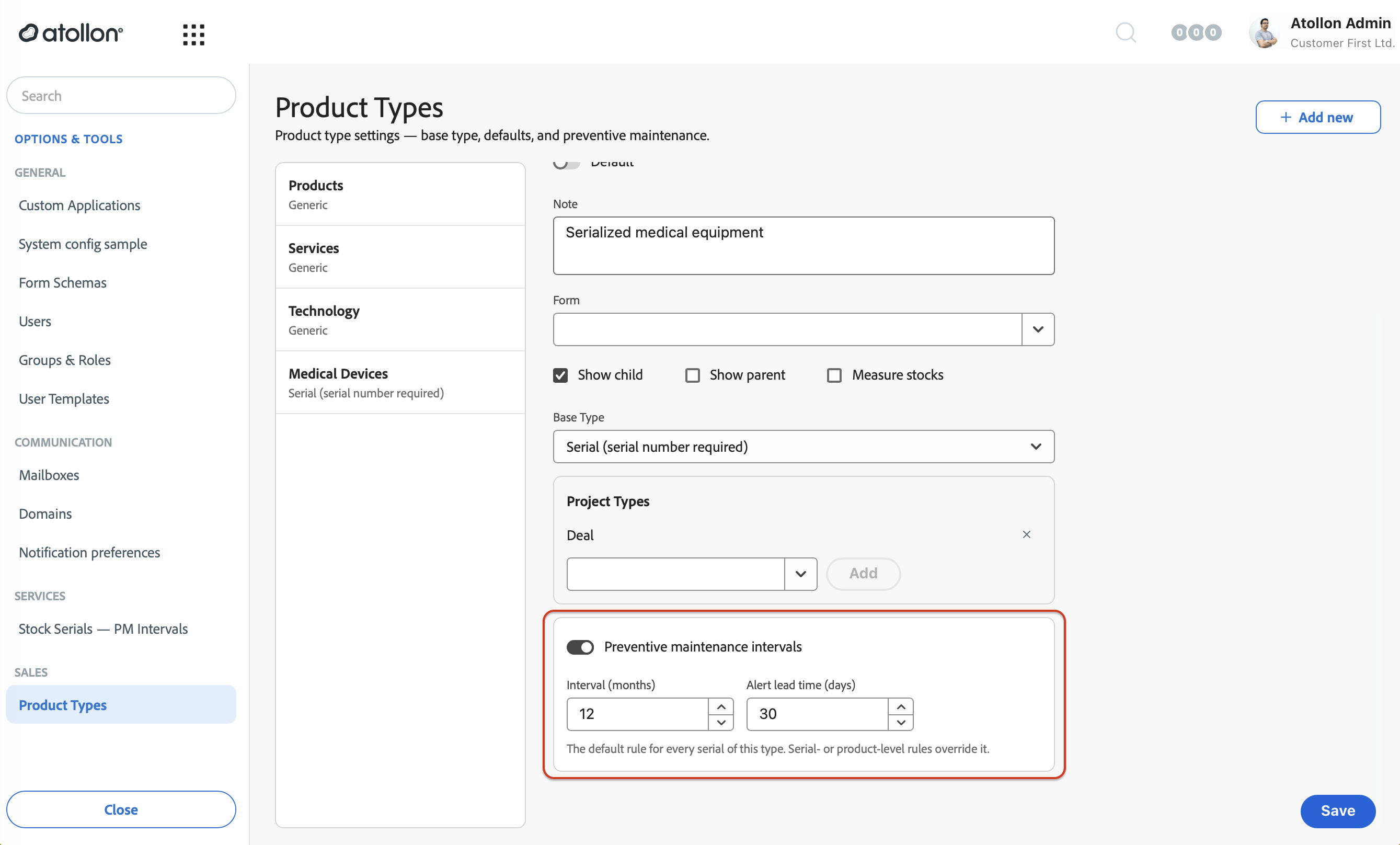
The note under the section — "The default rule for every serial of this type. Serial- or product-level rules override it." — is a reminder of the precedence described above.
Option B — The central PM Intervals screen
The complete list of PM rules, across every scope, lives in one place: Options & Tools > Stock Serials — PM Intervals. This is the central admin surface for reviewing and maintaining all rules.
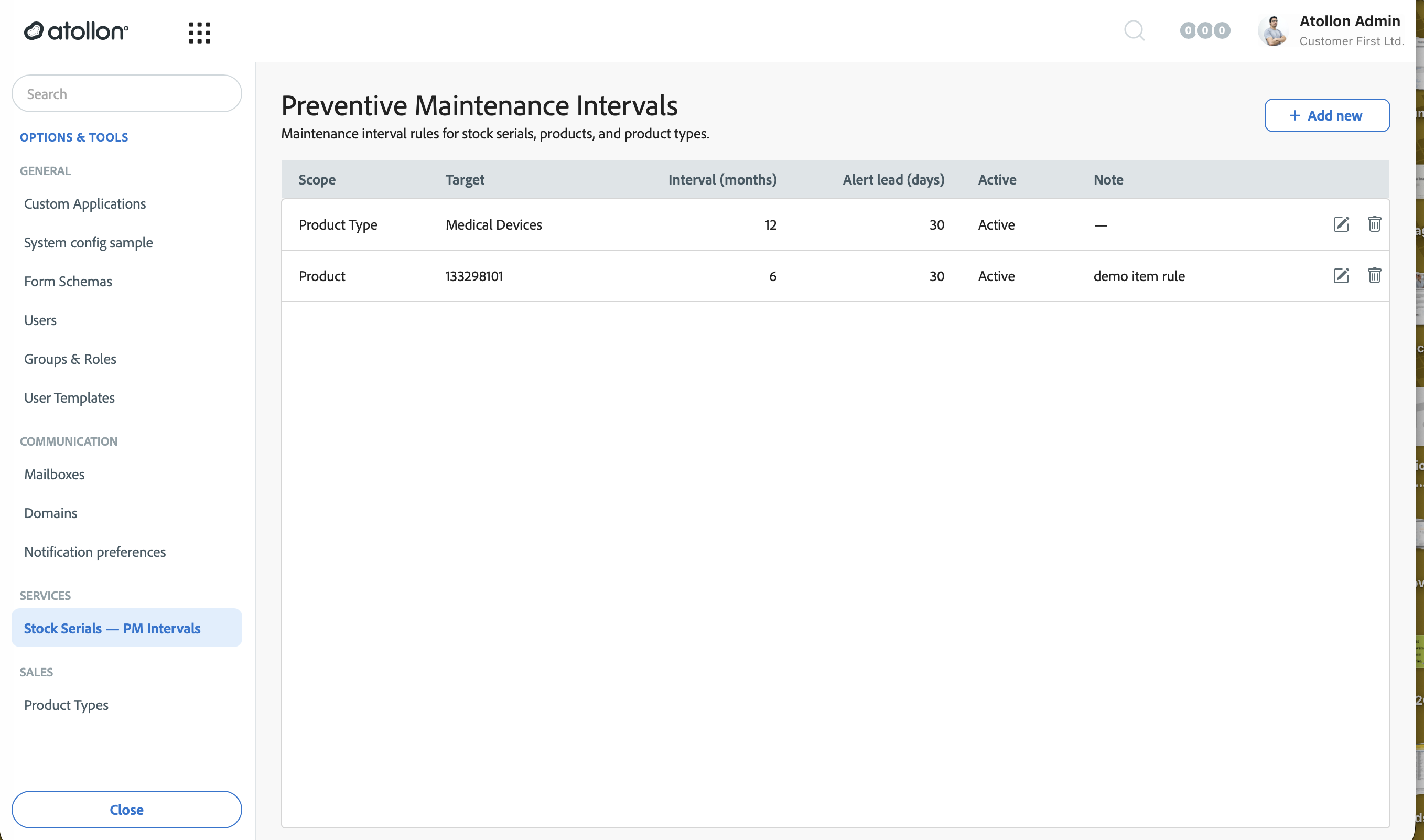
The list shows each rule's Scope, Target entity, Interval, Alert lead, Active flag, and Note. Use the edit and delete icons on each row, or Add new to create a rule.
To create a rule from here:
1. Click Add new. 2. Choose Rule applies to — Product Type, Product, or Serial. 3. Pick the Target entity for that scope. 4. Set Interval (months) and Alert lead time (days), toggle Active, and add an optional Note. 5. Click Create.
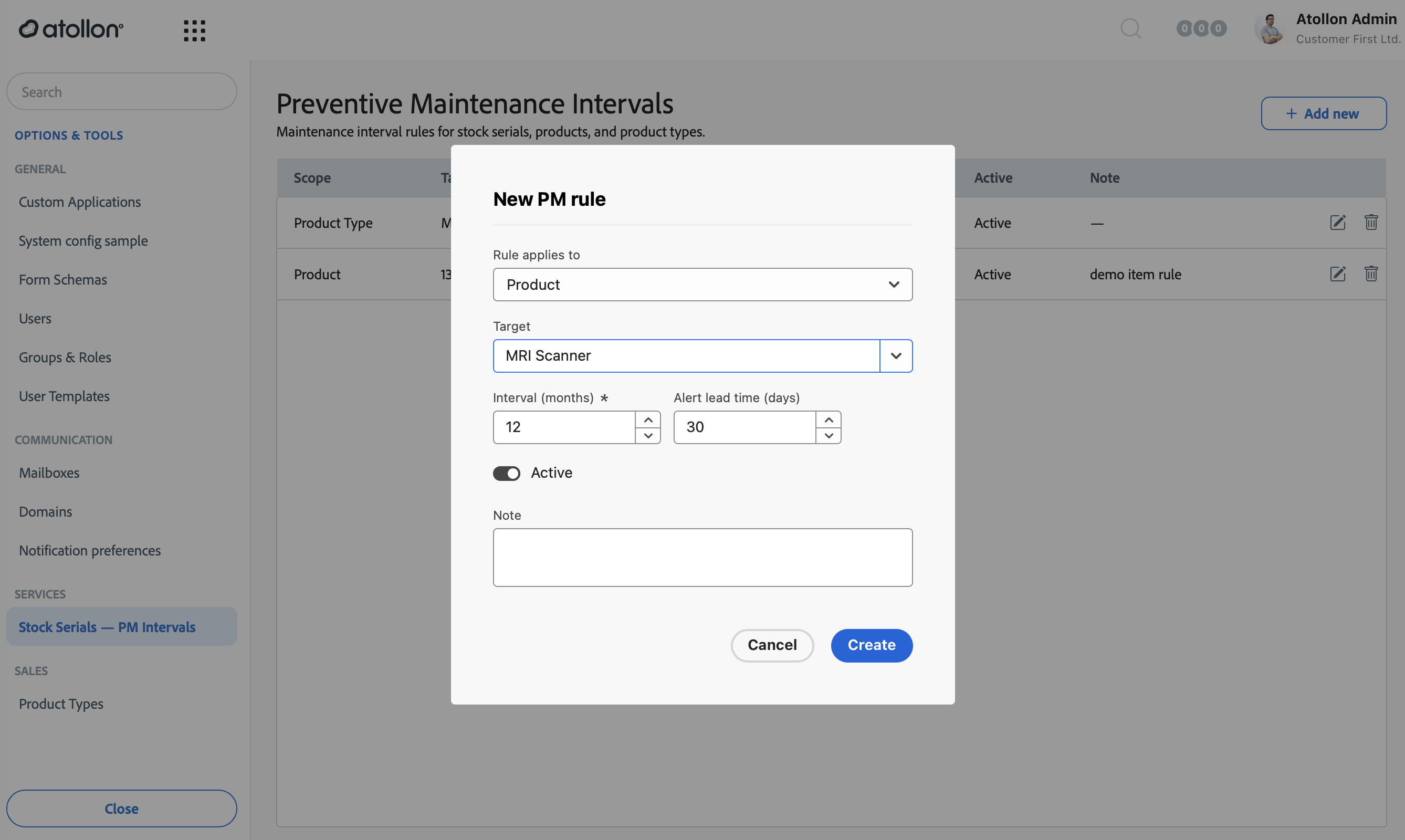
You can also create a rule in context — from a product type, a product detail, or a serial. When you do, the scope is preselected and locked to that entity, so the rule can only ever apply where you opened it from.
Deactivating versus deleting a rule
Deactivating a rule (turning Active off) is the preferred way to retire it. The rule stays in the list, shown dimmed, so you keep a record of it and can reactivate it later. Deactivating a rule also frees the scope, letting you create a new active rule for the same device, product, or type.
Deleting a rule removes it permanently and asks for confirmation first. Use delete only for rules created in error; use deactivate for rules you may want back.
What happens next
As soon as an active rule exists, Atollon computes a next due date and status for every affected device. It uses the last recorded maintenance date plus the interval; if there is no maintenance history, it counts from the install date; and if neither is known, the device is treated as immediately due. Devices with no applicable rule show as Not setup. Those signals appear on the device list and serial detail as described in Monitoring preventive maintenance.
Related guides
- Setting up serialized device tracking — create the serialized product types PM rules attach to.
- Monitoring preventive maintenance — how end users see PM status, due dates, and overdue devices, and how PM Due and PM Next are calculated.